How to Use Picker Wheel
Every tool, step by step
Picker Wheel runs entirely in your browser — no account, no download, nothing to install. This guide covers the basics that apply to every wheel, then walks through each of the sixteen tools in turn.
The basics — spinning any wheel
These five steps work on every tool on the site.
- Choose a tool. Open Tools in the top bar and pick the wheel you want. The page title and the wheel change straight away.
- Add your entries. Type into the box marked Type an entry and press Enter, then press Enter. Repeat for each option. To paste a whole list at once, use the Text tab instead — one entry per line — then press Apply to wheel.
- Spin. Click anywhere on the wheel, press the SPIN button in the middle, or press Ctrl + Enter.
- Read the result. The winner appears in a pop-up. Choose Done to close it, Hide choice to take that entry off the wheel, or Keep to leave it in.
- Check the history. The Results tab lists every spin in order. Copy puts the list on your clipboard; Clear empties it.
Managing your entries
Each row in the entry list has its own controls, and the toolbar above the list works on the whole set.
- Reorder. Drag the handle on the left of a row to move it.
- Duplicate, hide, delete. The three buttons on the right of each row copy the entry, hide it from the wheel without deleting it, or remove it entirely. Hidden entries can never win but stay in your list.
- Shuffle and Sort. Shuffle randomises the order. Sort offers A–Z, Z–A and Reverse.
- Search. The magnifier filters a long list so you can find one entry quickly.
- All. Hides or shows every entry at once — useful for building a wheel up from nothing.
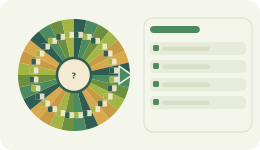
- More. Holds Mystery wheel (masks every slice with a question mark until the result appears), Delete empty entries and Remove all entries.
Three switches sit above the list:
- Weight — gives each entry a number. An entry with weight 3 is three times as likely to win as one with weight 1, and its slice is drawn three times wider.
- Color — lets you set each slice colour by hand instead of using the palette.
- Label — adds a short label to an entry, shown alongside the name.
The three spin modes
The buttons under the wheel change what happens after each spin. This matters more than most people expect.
- Normal — nothing changes. Every entry stays on the wheel, so the same one can win several times in a row. That is not a fault; the wheel has no memory.
- Elimination — the winner is removed after each spin. Use this to draw an order, pick teams one by one, or work through a list until it is empty.
- Accumulation — the winner stays and gains a point. Use this to keep score over many spins.
All sixteen tools, step by step
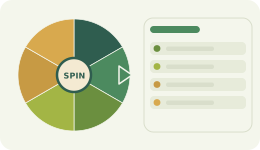
Picker Wheel
The general-purpose wheel. Any list of choices, spun at random.
- Type each choice and press Enter, or paste a whole list in the Text tab.
- Turn on Weight if some options should win more often.
- Spin. Pick Elimination mode if you want each winner removed as you go.
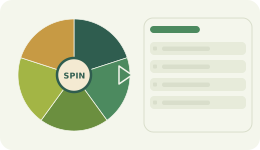
Yes or No
A fixed wheel for quick decisions — yes, no, or maybe.
- Open the tool. The wheel is already built, so there is nothing to type.
- Spin. The slices are weighted evenly between Yes and No, with one Maybe.
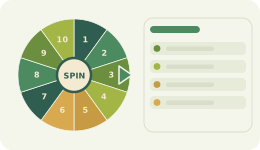
Number Picker
A random number from any range you set.
- Enter your lowest number in Min and your highest in Max.
- Press Generate range to fill the wheel.
- Spin. Use Elimination mode to draw numbers without repeats — for a raffle, for example.
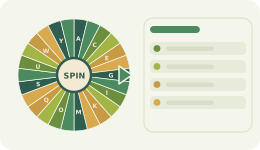
Letter Picker
A random letter of the alphabet.
- Choose a Case: uppercase A–Z, lowercase a–z, or both.
- Under Include, pick letters only, or letters plus numbers.
- Press Generate, then spin.
Team Picker
Splits a list of names into fair random teams.
- Add every name, one at a time, in the box provided.
- Under Group by, choose whether you are fixing the number of teams or the people per team, then set the number.
- Press Generate teams. The names are shuffled and divided as evenly as possible.
- Not happy with the split? Press it again for a fresh draw.
Country Picker
A random country from 101 options, with flags.
- Tick the countries you want on the wheel, or use Select all.
- Under Show, choose flag and name, flag only, or name only.
- Spin.
State Picker
A random state, with its state flag.
- Choose the country from the dropdown.
- Tick the states you want, or press Select all then Clear all to start from empty.
- Set Show to flag, name, or both, then spin.
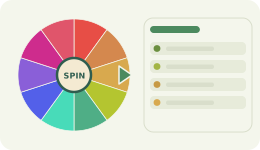
Color Picker
Spins to a random colour and gives you its hex code.
- Press Random color to add one, or Regenerate all for a whole fresh set.
- Spin. The winning colour and its hex code appear in the pop-up, ready to copy.
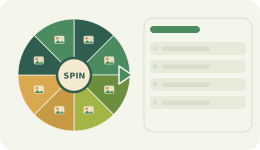
Image Picker
Puts your own pictures on the wheel.
- Press Add image(s) and choose one or more files from your device.
- The pictures appear on their slices. Delete any you do not want.
- Spin — the winning image is shown large in the pop-up. Your images stay on your device and are never uploaded to us.
Date Picker
A random date inside a range.
- Set a Start and an End date.
- Press Generate dates. Keep the range under about 200 days so the wheel stays readable.
- Spin.
Comment Picker
Draws a giveaway winner from a list of comments or usernames.
- Copy the comments or usernames and paste them into the box, one per line.
- Leave Remove duplicates ticked if each person should only get one entry.
- Press Load comments to put them on the wheel.
- Spin. For several prizes, switch to Elimination mode so the same person cannot win twice.
MLB, NBA and NFL Team Pickers
A random team from the league, organised by division.
- Open the league you want from the Tools menu.
- Tick individual teams, or use Select all and Clear all to work by division.
- Choose whether to show the team badge, the name, or both, then spin.
Soccer Team Picker
A random national team, with flags and confederations.
- Use the confederation dropdown to narrow to one region, or leave it on all.
- Tick the teams you want on the wheel.
- Spin.
Flag Quiz
Spins to a flag and asks you to name the country.
- Pick a region, or play with every country at once.
- Choose your question type: guess the flag, guess the name, or a mix of both.
- Choose how many answers to show — 2, 4 or 8. More answers means a harder round.
- Spin, then tap your answer. A correct guess is confirmed straight away and your score is kept below.
Settings
Open Settings in the top bar. Changes apply instantly and are saved for that wheel.
- Spin — speed, how many seconds the spin lasts, a manual stop button, a random start angle, idle spinning, and the mystery wheel.
- Sound — turn sound off entirely or set the volume, and choose separate start, spinning and winner sounds.
- Celebration — confetti on or off, and how much of it.
- Wheel colours — six palettes for the slices.
- Background — twelve page tints, from forest greens to sky blue, clay and stone.
If movement bothers you, turn off idle spinning and confetti, and shorten the spin duration. Together these remove nearly all animation from the page.
Saving, sharing and embedding
- Automatic saving. Every wheel saves itself to your browser as you work — entries, results and settings. Close the tab and it is still there next time.
- Save a file. File → Save wheel file downloads your wheel so you can keep it or move it to another device. Open wheel file loads it back.
- Share a link. Press Share and the whole wheel — entries, colours, weights and title — is copied to your clipboard as a link. Anyone who opens it gets an identical wheel.
- Embed it. The Embed Wheel page gives you a snippet to paste into your own site. The wheel stays fully interactive for your visitors.
- Export entries. File → Export entries saves the list as a plain text file.
One caution: because wheels live in your browser rather than on our servers, clearing your browsing data will delete them. If a wheel matters, save the file or keep its share link.
Keyboard shortcuts
| Ctrl + Enter | Spin the wheel |
| Enter | Add the entry you have just typed |
| Esc | Close an open dialog or menu |
| Tab | Move through menus, buttons and fields |
Your daily streak
The streak chip above the wheel counts the days you have actually spun — not the days you have opened the page. Spinning ten times in one day still counts once. Click the chip to see your best streak, your total days, and which of the last seven days you played. Miss a whole day and the count starts again.
Still stuck?
The FAQ on the main page answers the most common questions, and the blog has longer articles on picking teams, running giveaways and choosing the right spin mode. If something is not working the way this guide describes, tell us — that is a bug worth knowing about.